To create an invoice, please go to Accounting > Invoicing > Invoices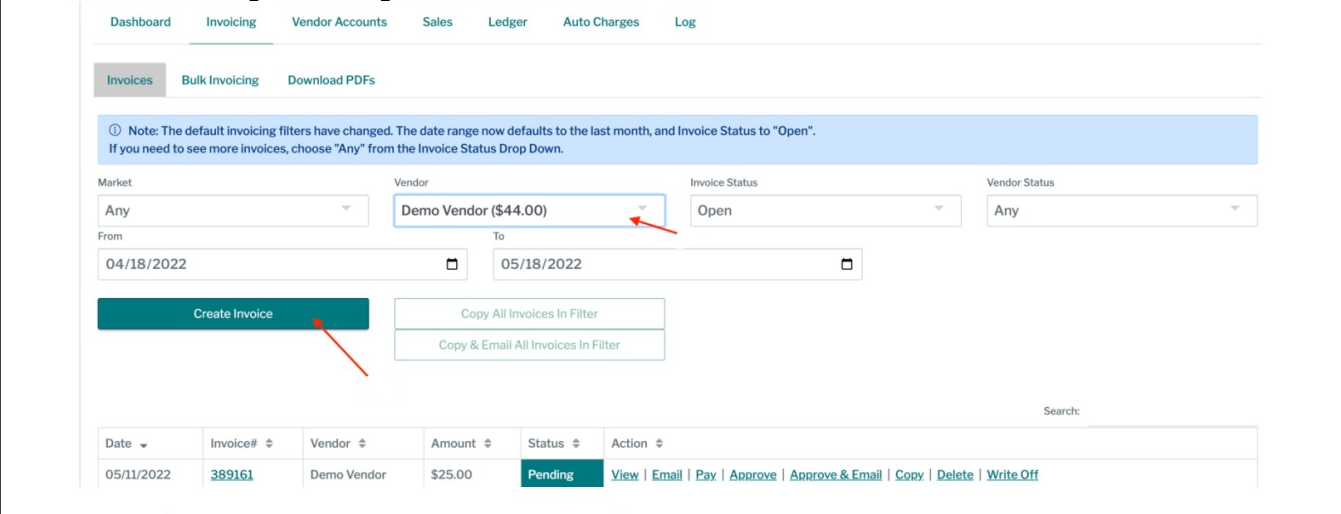
Select the vendor you are creating the invoice for;
Click the Create Invoice button to open the invoice module;
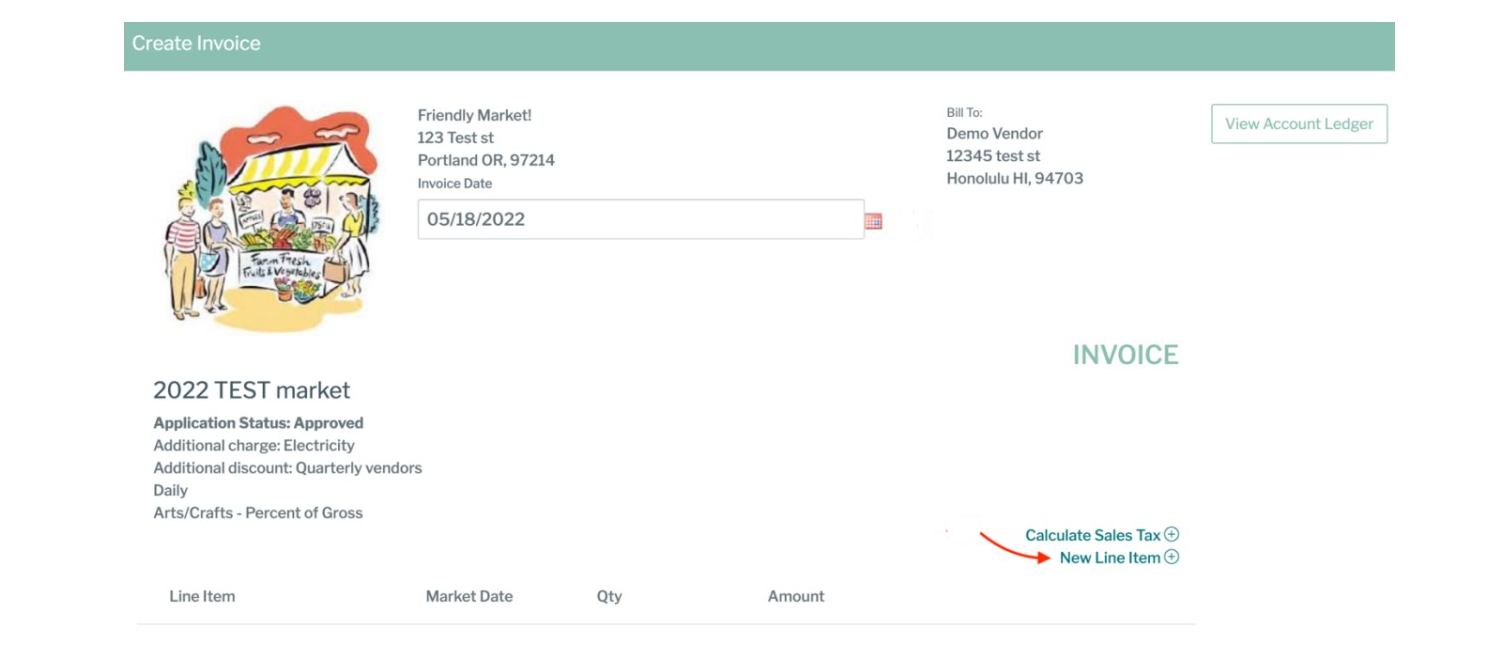
If you would like to change the invoice date, you can do it here;
If you have multiple markets, locate the market the invoice should be associated to and click New Line Item under that market header. You can add as many line items as you need for your invoice by clicking on it again.
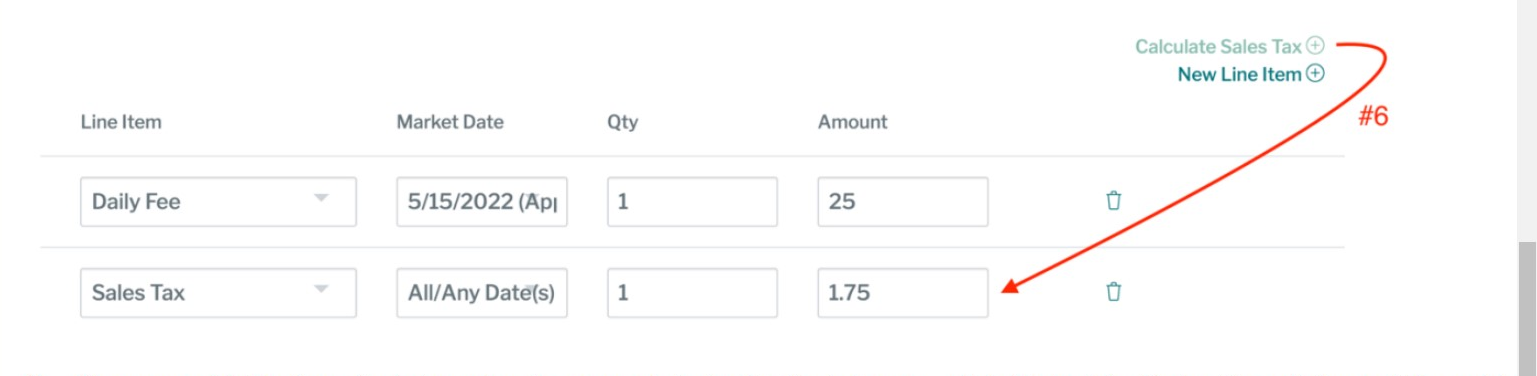
Select the Entry Type you will be invoicing your vendor and an associated market date - if applicable. The amount will populate based on the Entry Type. If you choose a greater quantity than 1, it will calculate the amount based on the quantity.
If you would like to calculate sales tax associated with that charge, click Calculate Sales Tax. A line will be added with the tax based on your sales tax settings (See Settings).
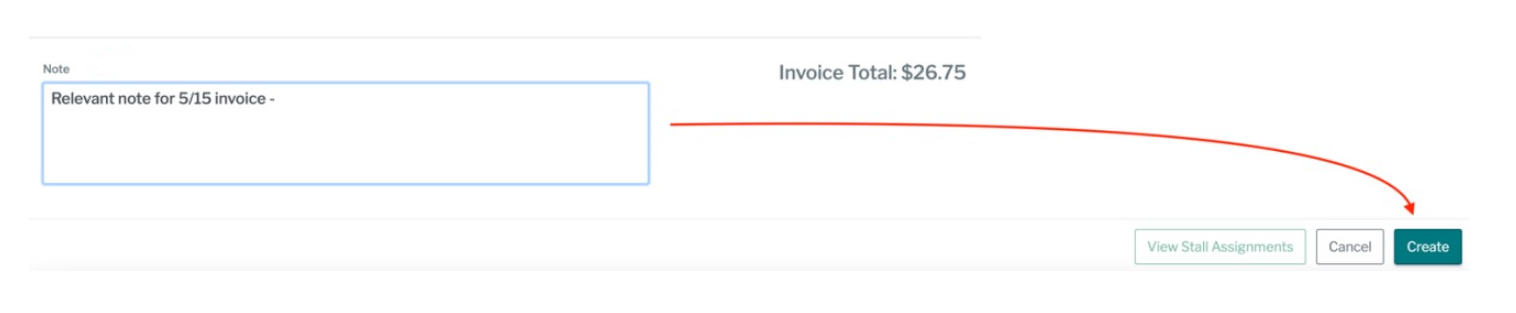
Review your invoice and feel free to add any relevant notes to it before clicking the 'Create' button.
Should you need further assistance, feel free to contact us. :)
Was this article helpful?
That’s Great!
Thank you for your feedback
Sorry! We couldn't be helpful
Thank you for your feedback
Feedback sent
We appreciate your effort and will try to fix the article